

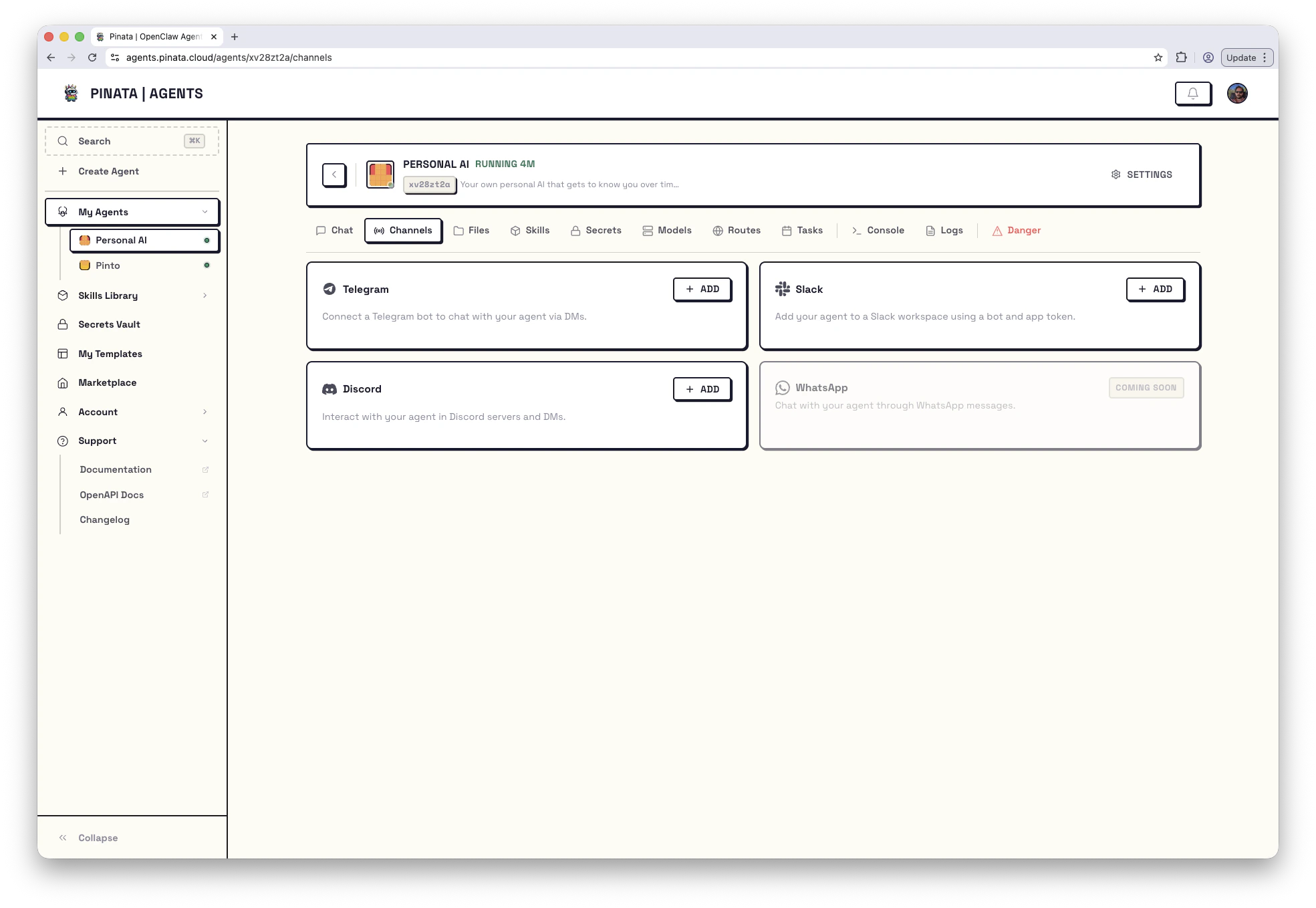
By default, the only way to talk to your agent is through the Pinata dashboard. Channels change that — connect Telegram, Slack, or Discord, and your agent shows up wherever you and your team already chat. WhatsApp is on the roadmap; you’ll see its card grayed out as Coming Soon.Documentation Index
Fetch the complete documentation index at: https://pinata-agents-hermes-channels-schema.mintlify.app/llms.txt
Use this file to discover all available pages before exploring further.
How it works
Open your agent → Channels. You’ll see one card per platform.- A card with + ADD isn’t connected yet. Click it to open the setup dialog.
- A card with ENABLED is already connected. The card shows a summary (the DM policy and a masked bot token), and a RECONFIGURE button reopens the dialog so you can update settings without losing the connection.
Telegram
This is the quickest. You need a bot token from Telegram’s BotFather.- In Telegram, message @BotFather
- Send
/newbotand follow the prompts - Copy the bot token BotFather gives you
- In Pinata: agent → Channels → + ADD on the Telegram card
- Paste the token and save
Controlling who can DM your bot
The Telegram dialog has two access controls:- DM policy —
open(anyone can message) orpairing(users must be approved first) - Allow list — a list of Telegram user IDs that are allowed to message
Slack
Slack needs a custom app with the right permissions. It’s a few more steps but everything happens once.- Go to api.slack.com/apps and create a new app
- Enable Socket Mode
- Create an App-Level Token with the
connections:writescope - Under OAuth & Permissions, add these bot token scopes:
chat:write,im:write,im:history,im:read,users:read,app_mentions:read - Install the app to your workspace
- In Pinata: agent → Channels → + ADD on the Slack card
- Paste both tokens — bot token starts with
xoxb-, app token starts withxapp-
@mentions in any channel it’s been invited to.
Discord
Same shape as Telegram — make a bot in Discord’s developer portal, copy the token, paste it in.- Go to discord.com/developers and create an application
- Under Bot, click Add Bot and copy the token (you may need to reset it once to reveal it)
- Under OAuth2 → URL Generator, check the
botscope and the permissions your bot needs - Open the generated URL to invite the bot to your server
- In Pinata: agent → Channels → + ADD on the Discord card
- Paste the bot token and save
Updating or removing a channel
- Reconfigure — click RECONFIGURE on an enabled channel. You can leave the token fields blank to keep the existing token while changing other settings.
- Remove — same dialog, Remove action. This deletes the channel config and restarts the agent’s gateway.
Channels are available for chat-oriented engines such as OpenClaw and Hermes. Channel changes take effect after the gateway restarts; Configure and Remove handle that automatically. The create wizard can collect channel setup before deployment. If you’re creating an agent via the API or CLI, pass a
channels object on POST /v0/agents for engines that support create-time channel bootstrap — see API → Create an agent.When it doesn’t work
| Symptom | What’s going on | What to do |
|---|---|---|
| Bot doesn’t respond | Gateway didn’t restart after configure | Open Danger → Restart Gateway |
| Slack works in DMs but not channels | Missing app_mentions:read scope | Reinstall the Slack app with the scopes above |
| Telegram users get no reply | dmPolicy is pairing and they aren’t paired yet | Switch to open, or approve them via Devices |
403 when adding a channel | Plan limit or workspace permissions | Check your plan and workspace role |
gateway/reload and the channel name, or walk through Troubleshooting.